
You bought a ChargePoint home charger. Now you need to actually install it. The ChargePoint home charger manual contains everything required, circuit specifications, mounting dimensions, Wi-Fi configuration, but digging through dense PDFs for specific answers gets old fast. Whether you're working with a CPH50 Home Flex or the older CPH25 model, this guide organizes the installation process into clear, sequential steps.
At Wave-Vo, we manufacture electric jet boats powered by swappable lithium batteries and brushless motors. Our customers tend to own electric vehicles, which means home charging infrastructure directly affects their lifestyle. A properly installed ChargePoint station keeps your EV topped off for daily driving, freeing up your weekends to load your Wave-Vo into the truck and head for the lake.
Below, you'll find the complete setup walkthrough for ChargePoint home chargers, covering electrical requirements through app connectivity. We've distilled the essential information from official documentation so you can get your unit mounted, wired, and operational without the manual scavenger hunt.
What you need before you use the manual
You can't jump straight into the ChargePoint home charger manual without preparing your workspace and gathering the correct materials. The installation requires specific tools, access to your electrical panel, and basic electrical knowledge. Skipping preparation leads to mid-project hardware store runs or worse, unsafe wiring attempts.
Before you crack open the official documentation, verify that your electrical panel has available capacity. ChargePoint Home Flex units operate on a 40-amp or 50-amp circuit, which means you need an open breaker slot and sufficient amperage headroom. Most residential panels provide 200 amps total, but if you're running electric heat, a pool pump, and multiple AC units, you might already be close to capacity.
Verify your panel's total capacity before buying wire or breakers. An overloaded panel creates fire risk and failed inspections.
Required tools and materials
Gather these items before you start the installation. You need a voltage tester to confirm power is off, wire strippers rated for 6 AWG or larger, and a torque screwdriver for terminal connections. ChargePoint specifies exact torque values in the manual, so finger-tight installations will create resistance and heat buildup.
Your materials list includes copper wire sized to match your breaker amperage (typically 6 AWG for 50-amp circuits), a NEMA 14-50 receptacle or hardwire connection, and appropriate cable conduit if local code requires it. Purchase materials after you confirm your circuit plan, not before.
Electrical panel access and circuit capacity
Open your electrical panel and locate the main breaker rating stamped on the panel door. Add up the amperage of all existing breakers, then confirm you have room for a new 40-amp or 50-amp double-pole breaker. If your panel is full, you'll need a sub-panel or a circuit consolidation before proceeding.
Check whether your jurisdiction requires a permit for EV charger installation. Most cities treat this as electrical work requiring inspection, not a simple appliance hookup.
Step 1. Find the right manual for your model
ChargePoint manufactures multiple home charging models, and each version has different electrical specifications and mounting requirements. Using the wrong manual creates confusion during installation, especially when the wiring diagrams don't match your unit's terminal layout. You need to identify your exact model before downloading documentation.
Identify your ChargePoint model number
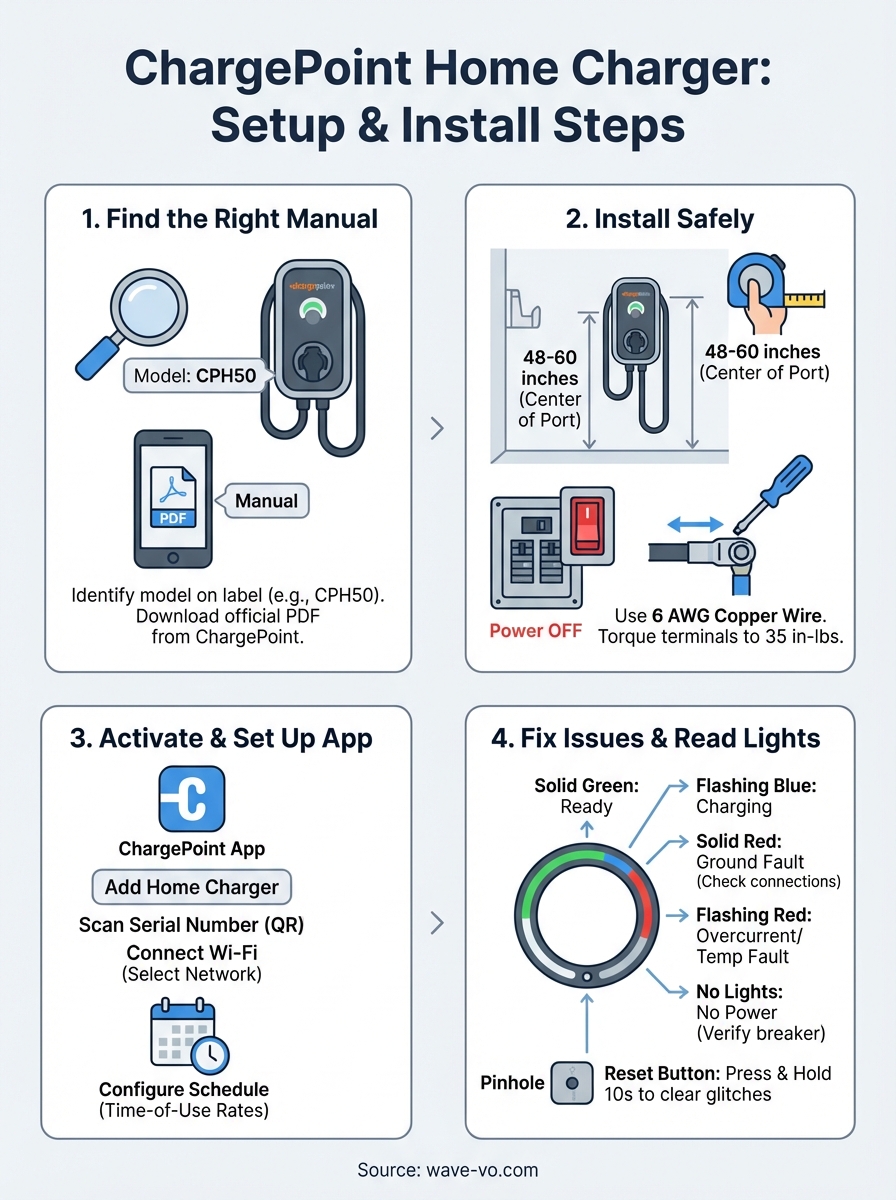
Flip your charger over or check the label on the back of the unit. You'll see a model number like CPH50 (Home Flex) or CPH25 (older generation). The CPH50 supports adjustable amperage from 16A to 50A, while the CPH25 operates at a fixed 32A. Write down the complete model number including any suffix letters, since ChargePoint occasionally releases revised versions with updated firmware or hardware.
Always verify the model number on your physical unit. Box labels occasionally contain packing errors or outdated information.
Download the official PDF
Navigate to the ChargePoint support portal and search for your model number. The chargepoint home charger manual downloads as a PDF containing installation steps, electrical specifications, and troubleshooting charts. Save this file to your phone so you can reference diagrams while standing at your electrical panel. ChargePoint also includes a quick-start guide printed on laminated cards in the box, but the full PDF contains critical details about circuit sizing and fault code meanings that the card version omits.
Step 2. Install the charger safely
Physical installation begins after you've reviewed the chargepoint home charger manual and confirmed your circuit capacity. This step involves mounting the unit to a wall and connecting it to your electrical panel through either a hardwired connection or a NEMA 14-50 outlet. Work with the breaker off and use a voltage tester to verify zero power before touching any wires.
Mount the charger at the correct height
Position your ChargePoint unit 48 to 60 inches from the ground, measured to the center of the charging port. This height accommodates most vehicle charge ports without excessive cable strain. Mark your mounting holes with a level to ensure the unit hangs straight, then drill pilot holes for the included lag bolts. ChargePoint requires mounting to wall studs or a backing board, not drywall alone.
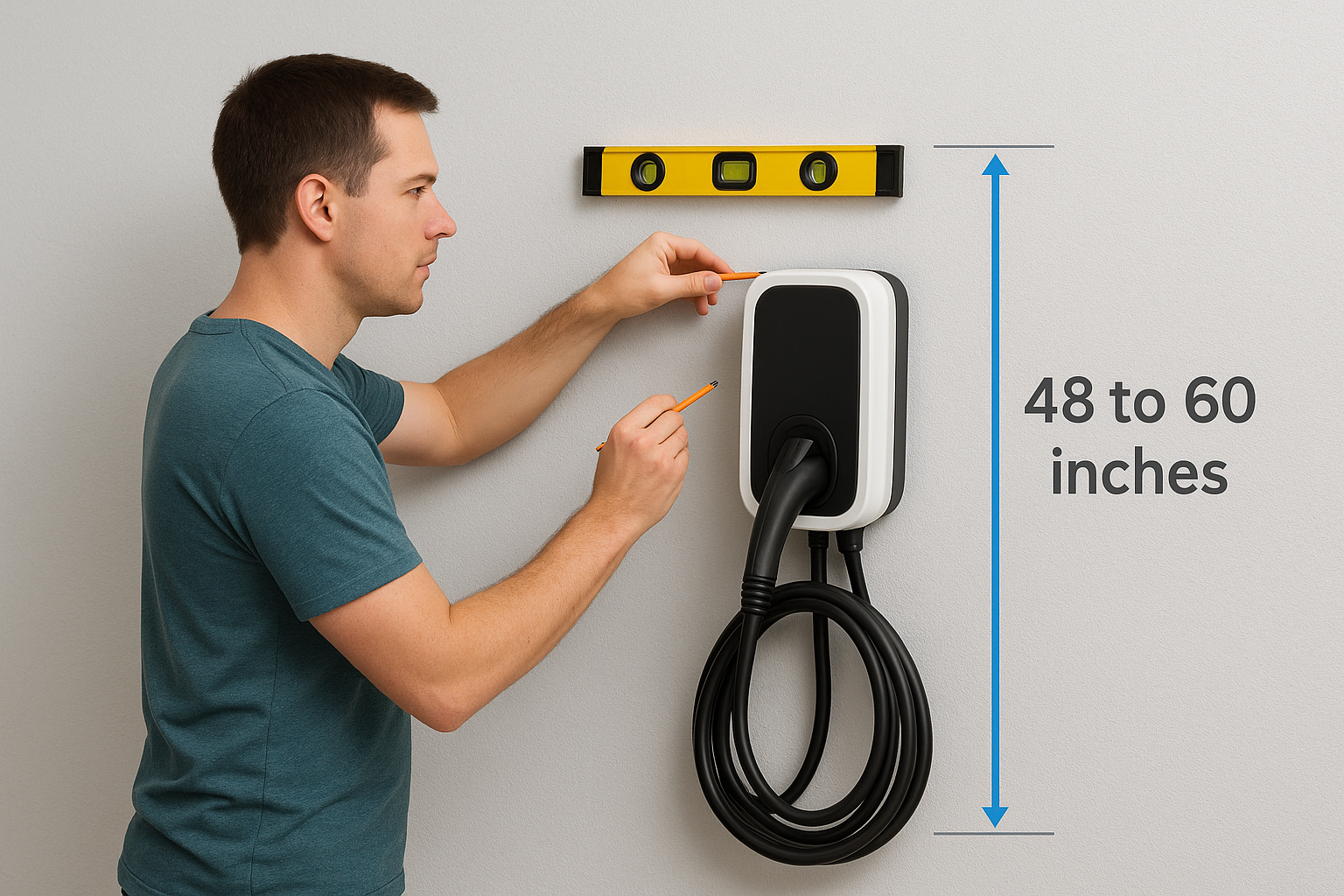
Never mount a 50-amp charger to drywall without proper backing. The unit weighs 20+ pounds and vibration from cable handling will loosen anchors over time.
Connect power according to local code
Turn off the main breaker before working inside the panel. Run your 6 AWG copper wire from the new breaker location to the charger mounting point, using conduit if required by local code. Strip wire ends to the exact length specified in the installation diagram, typically 5/8 inch. Connect ground, neutral, and both hot legs to their labeled terminals, then torque each connection to 35 inch-pounds. Incorrect torque creates heat and potential fire risk.
Step 3. Activate and set up in the ChargePoint app
Your charger won't function until you activate it through the ChargePoint mobile app. Physical installation connects power, but software activation links your unit to your account and enables remote monitoring, scheduling, and usage tracking. This process takes approximately 10 minutes and requires a stable internet connection at your installation location.
Download the app and create your account
Install the ChargePoint app from the App Store or Google Play, then create an account using your email address. ChargePoint sends a verification code to confirm your identity before allowing device registration. Enter your home address during setup so the app can locate nearby public charging stations when you're away from home. The chargepoint home charger manual includes a QR code that links directly to the app download page if you can't find it through search.
Connect your charger to Wi-Fi
Open the app and tap Add a Home Charger, then scan the serial number on your unit's label. Select your home Wi-Fi network from the list and enter the password. The charger's LED ring flashes blue during connection, then turns solid green when successfully linked.
Without Wi-Fi connectivity, you lose remote access and automatic firmware updates that fix bugs and add features.
Configure your charging schedule if you have time-of-use electricity rates. Set the charger to operate only during off-peak hours to reduce your monthly charging costs by 30 to 50 percent.
Step 4. Fix common issues and read the lights
Your ChargePoint charger communicates status and errors through LED ring colors and flash patterns. Understanding these signals helps you diagnose problems without calling support or reopening the chargepoint home charger manual every time something looks off. Most issues resolve through simple resets or Wi-Fi reconnection, but some require circuit inspection or professional help.
Decode LED light patterns
The LED ring displays specific colors for different operational states. A solid green ring means your charger is ready and waiting for a vehicle connection. Blue flashing indicates active charging in progress, while pulsing green shows that charging is scheduled to start later based on your app settings.
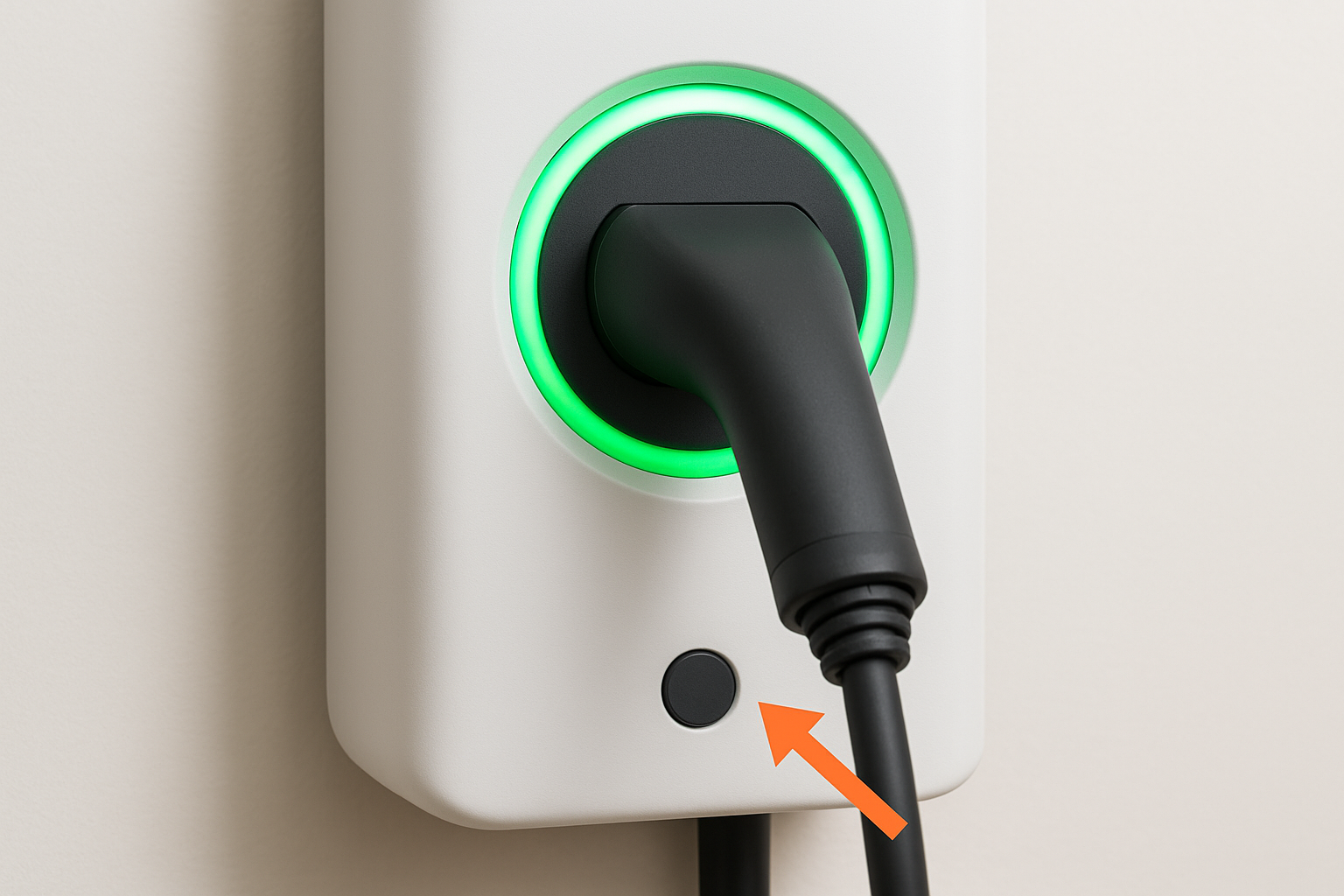
Error states use red patterns to signal specific problems:
- Solid red: Ground fault detected, check your electrical connections
- Flashing red: Overcurrent or temperature fault, allow cooling time
- Red and green alternating: Wi-Fi connection lost, reconnect through the app
- No lights: No power reaching the unit, verify breaker is on
Always photograph unusual light patterns before resetting. This documentation helps electricians diagnose intermittent electrical faults.
Press and hold the reset button for 10 seconds to clear minor software glitches. This button sits behind a small pinhole on the unit's face.
You're ready to charge at home
Your ChargePoint charger is now mounted, wired, and connected to your account. You verified the electrical connections meet code requirements and confirmed the LED ring displays the correct status patterns. The chargepoint home charger manual provided the technical specifications, but following these organized steps got your installation completed without wasting time hunting through documentation.
Plug your vehicle in and watch the blue charging light confirm everything works correctly. Your EV stays topped off overnight, which means you're always ready for spontaneous trips. When you want to escape the daily grind, load your gear and head to the lake. Discover how electric watercraft from Wave-Vo delivers the same instant torque and zero-emission benefits you enjoy from your EV, except now you're carving turns on open water instead of pavement.